
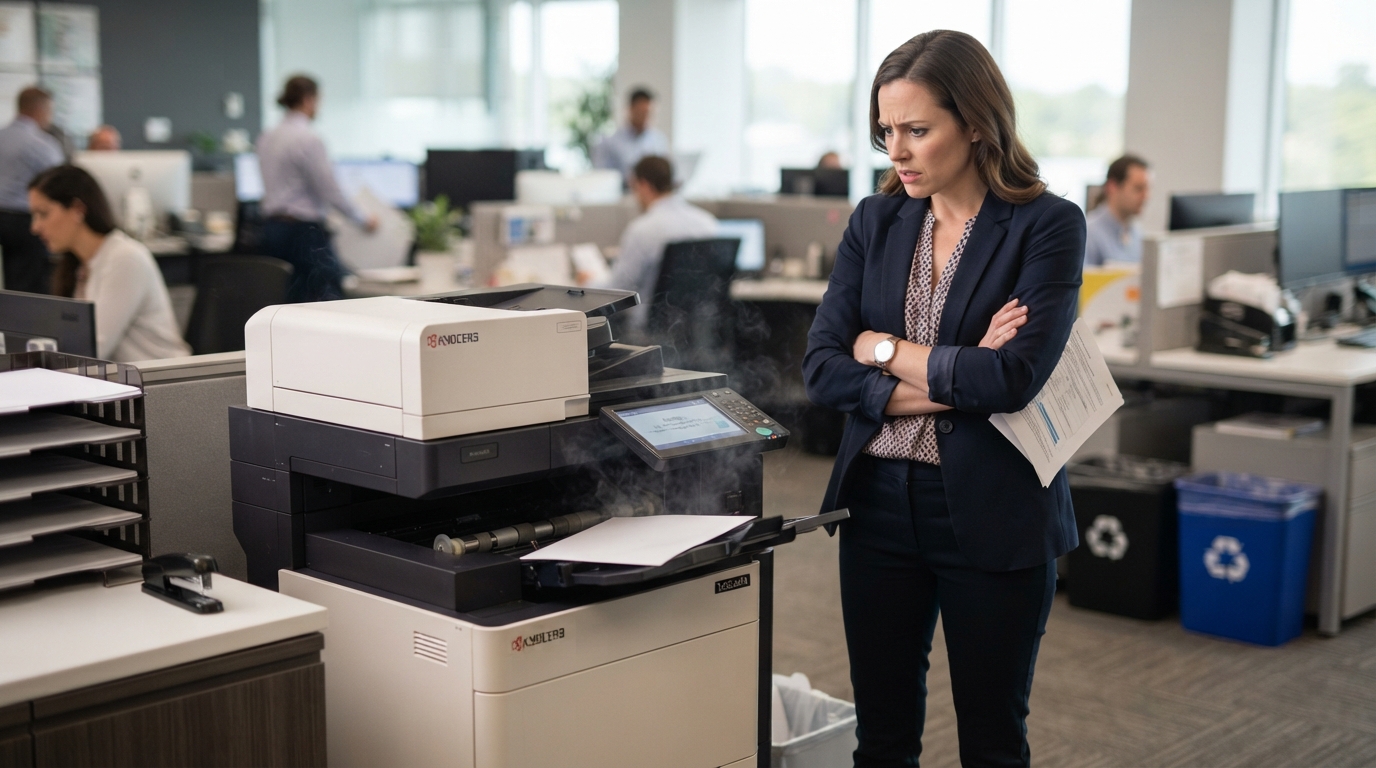
When Kyocera copiers or other multifunction printers suddenly begin printing slowly, the problem can interrupt an otherwise productive workday. Employees may wait for reports, contracts, invoices, and presentations while print jobs sit in a queue.
For Las Vegas businesses, these delays can be frustrating when several employees share the same office copier. Fortunately, slow printing doesn’t always mean the machine needs repair. The cause may be a print setting, network connection, large document, or computer issue.
Here’s how to investigate the most common causes.
1. Check the Print Settings
One of the easiest things to overlook is the print quality setting.
High-quality printing may require more processing time than standard office printing. Color documents, photographs, detailed graphics, and complex layouts can also take longer to process.
If an ordinary document suddenly takes much longer than expected, open the print settings on your computer.
Check whether the job is using a high-resolution mode, special paper setting, booklet layout, or finishing option that isn’t necessary.
For everyday internal documents, standard quality may be sufficient. Save higher-quality settings for presentations, marketing materials, and documents that require more detailed output.
2. Determine Whether One Computer or Everyone Is Affected
This simple test can help narrow down the cause.
Ask another employee to print a basic document.
If the second employee can print normally, the problem may be related to the original computer, printer driver, document, or connection.
If everyone is experiencing slow printing, investigate the copier itself, the shared network, and the print server if your office uses one.
This distinction can save time because it prevents you from troubleshooting the wrong part of the system.
3. Review the Network Connection
Network-connected copiers rely on communication between computers and the printer.
A weak Wi-Fi connection, faulty network cable, overloaded network, or incorrect configuration can delay jobs.
If the copier uses Ethernet, check that the cable is securely connected and inspect it for visible damage.
If the device uses Wi-Fi, confirm that it is connected to the intended network.
You should also determine whether other network services are experiencing problems.
Avoid changing advanced network settings unless you understand the consequences or have help from your IT administrator.
4. Check the Print Queue
Sometimes the copier isn’t the problem at all. A previous print job may be stuck in the queue and preventing later jobs from proceeding normally.
Open the printer queue on the computer or print server, depending on how your office is configured.
Look for jobs that remain pending or display an error.
If a document is stuck, follow your organization’s procedure for clearing or resubmitting the job.
Be careful when canceling queued jobs on a shared printer. Other employees may have documents waiting to print.
If jobs repeatedly become stuck, the issue may involve the driver, network, print server, or document processing.
5. Update or Reinstall the Printer Driver When Appropriate
Printer drivers help your computer communicate with the copier.
An outdated, corrupted, or incompatible driver may cause printing delays or errors.
If slow printing began after a computer update or software change, check whether the driver is appropriate for your copier model and operating system.
Use the manufacturer’s official support resources or contact your IT provider to obtain the correct driver.
Avoid downloading drivers from unfamiliar websites.
If only one workstation is affected, testing the driver is a reasonable troubleshooting step before requesting copier service.
6. Consider the Size of the Document
A ten-page text document is different from a large presentation containing detailed images, charts, embedded fonts, and graphics.
Some documents require substantial processing before the copier can begin printing.
If a particular file prints slowly, try printing a simple test document.
If the test document prints normally, the original file may be responsible.
You can also try printing a smaller section of the document or using a different supported file format.
For large PDFs, verify that the file isn’t unnecessarily complex or excessively large.
7. Check Paper and Finishing Options
Certain print settings can increase processing time.
These may include duplex printing, stapling, booklet creation, sorting, or other finishing features, depending on the copier.
Check whether the selected options are necessary for the job.
If the machine pauses frequently between pages, look for messages about paper trays, finishing units, or other components.
Don’t force open panels or attempt to service internal components unless the manufacturer specifically identifies the procedure as safe for users.
8. Watch for Repeated Error Messages
If slow printing occurs alongside error codes, unusual noises, repeated jams, or inconsistent print quality, the copier may need professional attention.
Write down the error message and note when the problem occurs.
For example, does the copier slow down only during large color jobs? Does it stop after printing several pages? Does it happen after the machine has been running for an extended period?
These details help a technician identify patterns and investigate the problem more efficiently.
9. Keep Up With Routine Maintenance
A copier that handles heavy workloads needs appropriate maintenance.
Depending on the model and service agreement, preventive maintenance may include inspection, cleaning, replacement of worn components, and checks of relevant operating functions.
For offices using Kyocera copiers, follow the instructions provided for the specific model and use an authorized or appropriately qualified service provider.
Regular maintenance won’t prevent every problem, but it can help identify developing issues before they cause substantial disruption.
10. Is Your Copier Too Small for Your Business?
Sometimes the issue isn’t a malfunction.
Your business may simply have outgrown the machine.
A copier selected for a small team may struggle to meet the demands of a larger office with heavy print volumes and multiple simultaneous users.
If employees frequently wait for jobs, the office repeatedly runs out of paper, or the copier cannot keep pace with daily workloads, review whether the equipment is appropriate for your current requirements.
A replacement or a properly sized copier lease may be worth evaluating if the productivity losses and maintenance expenses outweigh the cost of upgrading.
When Should You Call for Service?
Contact your copier provider when:
- Slow printing continues after basic checks.
- Multiple employees experience the same problem.
- The copier repeatedly displays error messages.
- The machine makes unusual noises.
- Print quality deteriorates at the same time.
- Paper jams occur frequently.
- Internal maintenance or replacement parts are required.
For businesses in Las Vegas, dependable copier performance is important for everyday office tasks, from printing contracts to preparing customer documents.
Final Thoughts
Slow printing can have several causes, and the best solution depends on identifying the source.
Start with print settings, the print queue, document size, and network connectivity. If the issue continues, check the driver and contact your copier service provider.
Tangerine Office Machines can help Las Vegas businesses evaluate their copier requirements and consider whether their existing equipment remains appropriate for their workload.
A little troubleshooting can resolve a simple problem. When slow printing becomes a pattern, a more thorough assessment can help your office avoid unnecessary downtime.